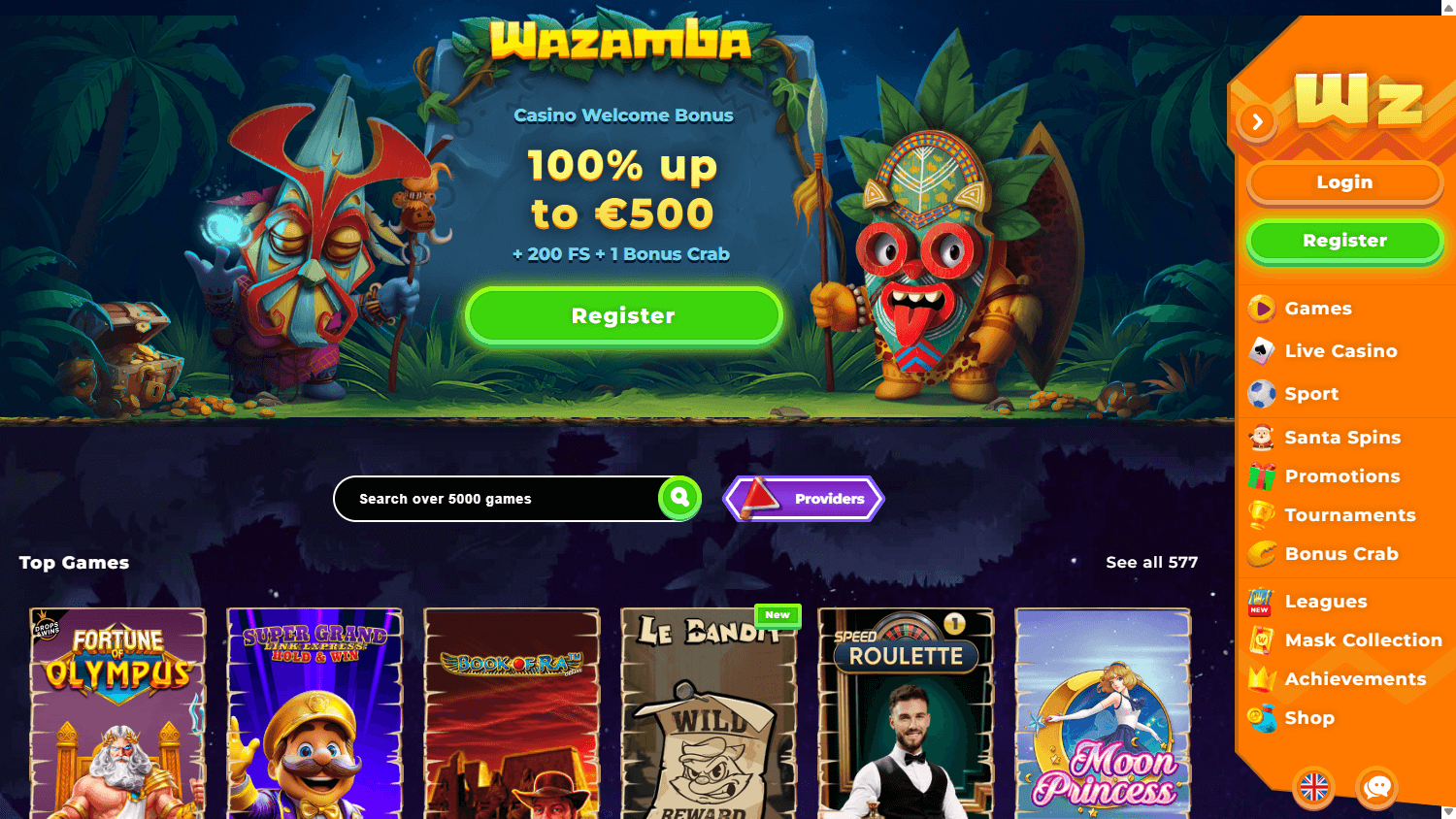
I keep the Wazamba Casino app on my phone because updates truly make a difference in how I play and manage my account https://wazamba-online.com/en-nz/app/. The latest version cleaned up the lobby navigation, reduced loading times for live dealer tables, and introduced a search bar that finds games as I type. These aren’t just cosmetic changes—they transform how a session feels. I’ve observed the app now holds my place in a game category after I exit a slot and come back, so I don’t have to scroll through hundreds of titles again. I’ll walk you through what I’ve found in the current release, from device compatibility and installation to the features that make the native app a better pick than the mobile browser. I’ll also cover performance, security, and troubleshooting, so you can decide if the download is right for you and get it running smoothly.
Guide to Get and Set Up the Wazamba Casino App on iOS
iOS process is simple. I launch the App Store, search “Wazamba Casino,” and make sure the developer name is the official one. I press “Get,” confirm with Face ID or my Apple ID password, and the app loads to my home screen. No security settings to adjust. After opening, I allow notifications so I have deposit confirmations and promo alerts. The first launch requires a few extra seconds because the app verifies with Apple’s servers. I’ve never encountered a region-lock, but if the app doesn’t display, check that your Apple ID country is selected to a accepted jurisdiction. The app updates by itself if you have that coinmarketcap.com on, or you can manually from the App Store’s account section.
Exceptional In-App Features You Will Not Find on the Desktop Site
Push Alerts and Customized Alerts
Push notifications are how I snag time-sensitive tournament sign-ups and live casino promos without sifting through email. The app lets me select exactly which alerts I want: I can turn on payment confirmations, new game releases, or bonus offers, and mute everything else. That kind of control is not on desktop—there I’d have to log in just to see what’s new. Notifications hit my phone within seconds. That came in handy when I grabbed a reload bonus that was only live for 30 minutes. I also get game recommendations based on what I’ve played, and tapping the alert opens that game straight away. The system respects quiet hours on both Android and iOS, so I don’t get buzzed at night unless I override the device settings.
Biometric Access and Quick Access
I access the app with a fingerprint or face scan—login takes less than a second. On desktop I have to type my password every time. The app stores an encrypted token that pairs with the biometric check. I can set a six-digit PIN as a backup. Security isn’t weakened: the biometric data never leaves the device, it just unlocks the token stored locally. I tested it after force-closing the app; it still asks for biometrics before showing my balance, so nothing sensitive shows up in the app switcher. For me, this is the biggest reason to use the app over the browser.
Account Administration and Security Within the App
I handle deposit limits, reality checks, and self-exclusion directly from the app’s account hub. The responsible gaming tools are identical to those on desktop, but the mobile layout leads you through them step by step, so they’re easier to notice. I can establish daily, weekly, or monthly deposit caps, and the app implements them instantly across all platforms. Two-factor authentication is available—I’d enable it. The app functions with authenticator apps and SMS codes. The login section indicates the last session time and device, so I can spot any unauthorized access fast. All data goes over TLS 1.3, and the app doesn’t store payment card details in plain text. I appreciate that the cashier includes the same payment methods as desktop, and I can deposit with a saved method after a biometric check. That adds a bit of friction only where it counts.
Fixing Typical Installation and Update Issues
If the Android APK fails to install, I first ensure that I’ve uninstalled any older version of the app from a alternate source—signature mismatches will stop it. I also ensure “Install unknown apps” is enabled for the exact app I used to download the file, not just a general setting. On iOS, if the app icon turns grey after an update, I click it to stop and continue the download, or reset the device. A empty lobby screen after an update is common; I fix it by clearing the app cache from settings, or on iOS, removing and setting up again the app (that preserves your data). If live streams buffer, I change from 4G to Wi-Fi or reduce the stream quality in the in-game settings. I always check that my OS satisfies the minimum version before updating—skipping that is the easiest way to have a broken app.
I’ve used the Wazamba Casino app across multiple phone models and OS updates, and this newest release cements it as the finest way to gamble on mobile. The Android installation takes a couple extra steps, but what you obtain is a faster, more protected, notification-packed experience that the mobile browser cannot match. If you still haven’t switched, download the app from the authorized site, enable biometric login, and adjust your alert preferences to match how you gamble. Then maintain updates—each new version offers performance bumps and interface polish that add up to a far superior mobile session.
What Has Changed in the Newest App Version

I got the newest update and straight away observed a redesigned bottom nav bar. The casino, live casino, promos, and account hub are all within easy reach. Earlier, I needed another tap to get to live dealer, so this removes a step. Behind the scenes, the team upgraded WebSocket handling for live games. The video stream syncs faster on 4G, and I experience fewer freezes during blackjack or roulette. Search now finds partial words: type “black” and blackjack variants pop up. I also like that the app keeps me logged in after a short idle anymore—session persistence is extended, but security hasn’t been loosened. These could look like small things, but together they cause the whole session be smoother, especially when I switch between slots, tables, and the cashier.
Interface and Usability: What Sets the App Apart from the Mobile Browser
The app’s bottom tab bar seems much more fluid than the browser’s hamburger menu. Slots, live casino, promos, and account are always accessible, and I can toggle between them without going to the top of the screen. The game grid appears more rapidly because thumbnails are saved locally. I can browse by provider or category with a sticky bar that remains fixed while I scroll. In the browser, applying a filter refreshes the whole page; the app just refreshes the grid on the fly. The app also holds my session longer—I can leave it in the background for several minutes and return without logging in again, while the mobile site often times out. The search icon appears at the top right; tapping it brings up a keyboard-friendly overlay that keeps the layout around. That small detail minimizes mistyped searches.
Available Devices and System Requirements
Android Support
I’m using the app on a standard Android phone with 4 GB RAM and Android 10, and it’s seamless. The formal minimum is Android 8.0 (Oreo), but I’d advise Android 9 or later if you want the best live casino streaming. You can’t locate it on Google Play because of gambling app restrictions, so you download the APK right from the Wazamba Casino website. Your device requires to allow installs from unknown sources. I’d keep at least 150 MB free for the base app and future cache. I’ve checked it on Samsung, Xiaomi, and OnePlus phones, and the layout fits fine on screens from 5.8 to 6.7 inches. Tablets operate, but the design is really meant for portrait mode on phones.
iOS Integration
For iOS, I downloaded the app from the App Store—the only official way. It demands iOS 13.0 or later. I’ve run it smoothly on an iPhone 8, iPhone 12, and a 2021 iPad. Touch ID and Face ID both function for unlocking. The iOS version uses Apple’s Metal graphics framework for slot animations, so frame rates stay high even on older devices. The download is about 120 MB. After a week of regular play, the app’s documents and data usually generate another 80–100 MB. I’d maintain at least 500 MB free to avoid low-storage warnings during updates. The app doesn’t work on iOS 12 or earlier, so check your software version before you start installing.
Speed, Data Consumption, and Application Size
I tracked data use over an hour of slots and live roulette on 4G: about 180 MB. That’s similar to the mobile site, but the app preloads game assets more aggressively, so I devote less time looking at loading spinners when I swap games. The initial download is approximately 100 MB on Android, 120 MB on iOS. After a month of use, the total storage footprint with cached files seldom tops 300 MB. I clean the in-app cache every few weeks from the settings menu to free up space and address any sluggishness. On Wi-Fi, live streams reach 1080p when the connection allows, and the app lowers resolution automatically on slower networks. I didn’t experience crashes on Android 11 or iOS 15, and memory usage holds under 400 MB even with a few games preloaded in the background.
Steps to Download and Install the Wazamba Casino App on Android

I typically download the APK right from the Wazamba Casino mobile site. That way I understand I’m obtaining the latest signed version. I navigate to the app page, tap the Android download button, and the file lands in my downloads folder. Before launching it, I go to Settings > Security (or Apps) and activate “Install unknown apps” for my browser or file manager. Then I click the APK, verify the install, and hold about 20 seconds. After that, I open the app, login with my usual credentials, and my balance and game history synchronize right up. I don’t employ third-party APK sites—they may have outdated or tampered files that set my account at risk. If you previously have the app, upgrading is the same: get the new APK and set up it over the old one, no data lost.
Leave a Reply